
Learn · Practical guides
Sending yourself an encrypted note
Use a sealed message as an encrypted note to yourself: the lock, the expiry, My messages, and where it stops being the right tool.
Yes, you can use a cipher.ink message as an encrypted note to yourself. Write it, lock it with a passphrase, set the expiry you need (up to 30 days, or never) and keep the link. Only someone with the link and the passphrase can read it, and the server holds nothing but ciphertext. It works best for a short-lived secret you need on another device, like a recovery code to read from your phone, a one-time key, or the text of a sensitive message you'll finish tomorrow. It isn't a notes app or a password manager. This guide shows where the line is, so you don't lean on it for something it can't keep.
When a note to yourself makes sense
- Moving a secret between your own devices. You've got a recovery code on your laptop and need it on your phone, or the reverse, and you don't want to email it to yourself (why email is a poor place for secrets).
- Parking something sensitive for a day or two. That could be a draft, a list of account numbers for a form you'll fill in tomorrow, or the text of a hard message.
- Keeping a secret out of your notes app. Notes often sync to a cloud account or get indexed by search. A sealed note leaves nothing readable behind in either.
It's the wrong tool for anything you want to keep for years, or must be sure you'll still have. A service with no accounts, no payment and no promise of permanence shouldn't hold the only copy of anything.
Step by step
- Write the note on the page. You can attach a file or paste a screenshot ( files, MB in all).
- Choose the lock. Use Passphrase for a note you'll keep for more than a few minutes, so the link alone isn't enough. Pick something you can remember or store separately, because nothing can recover it. A six-word random passphrase is a good choice. Use Secret link if you only need to move the note between devices right now, and you can send the link to yourself in a way you trust.
- Set the options. Destroy after offers . Pick the shortest that works, and the note will disappear on its own. Leave Burn after reading off if you'll open it more than once, because a burned note is deleted the first time it's opened.
- Seal it. The card shows the link, the passphrase and a private read-receipt link. Copy the link somewhere you control, such as your own messages, a text to yourself or your password manager.
- Open it later on whichever device you need, with the link and the passphrase, and copy out what you came for. When you're done, press Destroy it now on the reading page.
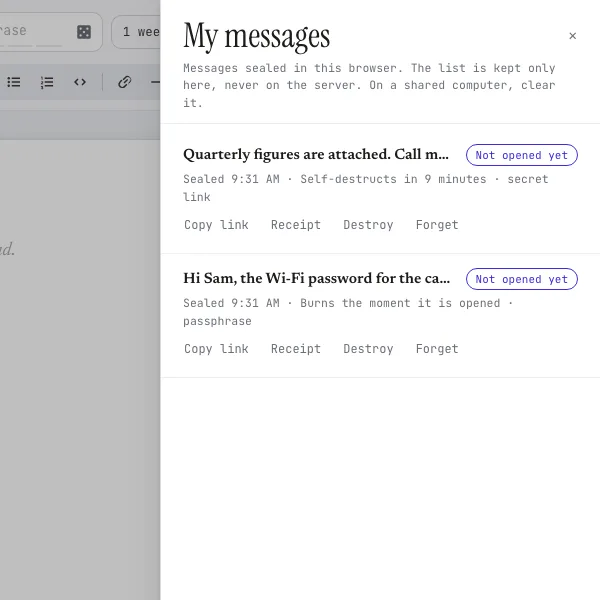
What "My messages" remembers
The My messages button in the header lists what you've sealed in this browser. Each entry has a live status (Not opened yet, Opened, Opened and burned, Destroyed, Expired) and buttons to copy the link, open the receipt, destroy the note or forget it. It's your own record, kept in the browser's local storage and never on the server. That has three consequences:
- The list doesn't follow you. It exists in this browser only. On another computer, use the receipt link (
/s/…#…) and choose "Add to My messages". Clearing the browser's site data wipes the list too. - For secret links, the whole link, key included, is kept there, along with the first 48 characters of the message as a label. Anyone who can use this browser profile can read those notes. On a shared or borrowed computer, clear the list when you're done (the drawer has a button for it) or use a private window.
- Passphrases aren't kept. The list holds the link and not the passphrase, so you still have to remember it or store it somewhere else.
Where it goes wrong
- A forgotten passphrase is a lost note. There's no reset and no recovery. The server can't decrypt it, and neither can we. Don't use a passphrase you can't reliably produce.
- Expiry is final. When the timer ends, the message is deleted from the server and nothing brings it back. A message set to "never" stays until you or a reader destroys it, though even then nothing promises it'll last.
- A shared link is a shared note. Anyone who gets the link to a note without burn, plus its passphrase, can read it as often as they like.
- The device is the weak point. A note you open on an infected phone, or on a computer that records its screen, is no longer protected. Encryption covers the note on the server and on the way there, not on your screen.
Use something else for these
- Passwords and recovery codes you'll keep: a password manager, which stores them encrypted, syncs them and can fill them in. Keep its master passphrase strong (making one).
- Documents you want to keep: an encrypted archive or a disk image that you control (how to make one).
- Notes you write every day: a notes app with end-to-end encryption, where you can search and edit.
Common questions
Can I edit the note after sealing it?
No. A sealed message can't be changed. Make a new one, copy over your changes and destroy the old one.
Can cipher.ink read my notes?
No. The text is encrypted in your browser and only ciphertext reaches the server. The security page lists what the server does see, like sizes and times.
What if I clear my browser data?
My messages is emptied, but the notes themselves stay on the server until they expire. If you kept the link and the passphrase elsewhere, you can still open them, and the receipt link lets you manage or destroy a note.
Is this safe enough for my crypto wallet seed phrase?
We wouldn't advise it. A seed phrase shouldn't sit in any online service for long. For a one-off move between your own devices, a short expiry plus burn beats email, but the safer habit is not to put such a thing online at all.